



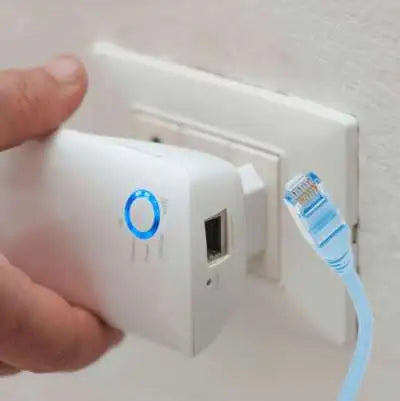
Hello! Have you wired your home network and now have a Wi-Fi repeater you no longer use? Don't throw it away! Instead, you can convert it into an access point and further improve your internet connection. In this article, we'll show you how to easily convert your Wi-Fi repeater into an access point so you can enjoy a more stable and faster connection throughout your home. Read on to find out how!
What is an access point?
An access point (AP) is a device used to extend a router's wireless signal. Unlike a repeater, which simply amplifies the existing signal, an access point creates a new wireless signal to cover an additional area. By configuring a WiFi repeater in access point mode, you can connect devices to your wireless network in a new location without affecting signal quality.
Here's a link to a more detailed article.

Requirements to make the change
- A main router: A main router connected to the Internet is required, capable of providing a strong and stable WiFi signal; this is not as important in this case.
- Ethernet or Plastic Optical Fiber cabling: A wired network is required to connect the WiFi repeater in Access Point mode to the main router.
- Access Point Mode: It is important that the WiFi repeater has the option to be configured in Access Point mode, which will allow the device to function as an access point for the wireless connection. (It is important to note that not all repeaters have this functionality, so it is important to ensure that the device in question has it before attempting to configure it as an Access Point)
- Same SSID and password: The wireless network name (SSID) and password must be the same for both the main router and the WiFi repeater in Access Point mode, which will allow devices to connect to the network without connection problems.

Step-by-step to convert a WiFi repeater into an access point
-
Access your WiFi repeater's settings: Open a web browser on your computer and type in your WiFi repeater's IP address. If you're not sure what the IP address is, you can consult the user manual or search online using your WiFi repeater's brand and model.
-
Change the operating mode: Once inside your WiFi repeater's settings, look for the operating mode option and select Access Point (AP).
-
Assign an IP address: In the same section where you changed the operating mode, look for the IP address option and assign a static IP address for your access point. Make sure the IP address doesn't conflict with other IP addresses on your network.
-
Disable DHCP: In the network settings section of your WiFi repeater, disable the DHCP option to avoid IP address conflicts on your network.
-
Connect the WiFi repeater to the Ethernet port: Connect the WiFi repeater to the Ethernet using an Ethernet patch cable. Make sure the LAN ports of the router and the WiFi repeater are connected.
-
Restart the WiFi repeater: Restart the WiFi repeater for the changes to apply correctly.
Done! Your WiFi repeater is now configured in access point mode, and you can extend your router's wireless signal to cover a new area in your home or office with much more power. If
(3).png)


